


In Solidgate Billing 2.0, per-seat pricing charges a recurring fee for each user with access to the product. The total subscription price changes as the number of users changes.
For example, if a plan costs 10 USD per seat per month, eight users cost 80 USD per month. Adding five users increases the monthly price to 130 USD.
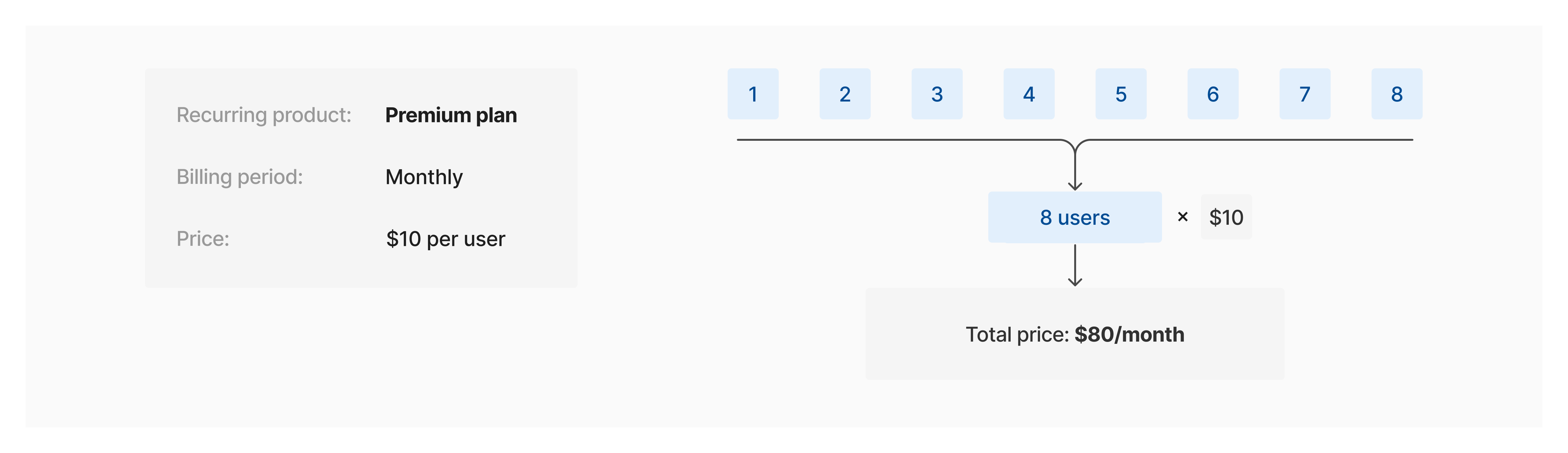
How per-seat pricing works

Each user who needs access to your product counts as one seat. The total subscription price equals the number of seats multiplied by the price per seat. Customers are charged automatically at the start of each billing period based on their current seat count.
What to consider:
- Offer per-seat pricing when each user needs their own account or license.
- Configure the billing period at the product level.
- Create a separate product for each billing period you offer.
- Add a price to each product to define the cost of a single seat in a specific currency.
- Review assigned seats regularly to bill only for users who still need access.
Set up per-seat pricing
- Send a request to the create product API v1 endpoint to create the per-seat product and set its billing period.
- Assign a price representing the cost of a single seat with the create product price API v1 endpoint.
- Repeat these two API calls to create the product with other billing periods and their corresponding pricing.
- Create a customer to identify who is being billed, using the create customer API v2 endpoint.
- Create the subscription. Reference the
product_price_idand setquantityto the number of seats the customer needs.
Start with the product
- Go to Billing > Products.
- Click on + Create product.
- Enter a name for the product.
- Set the Default price to the cost of a single seat and specify the Billing period.
- Click on Create product.
Next, create the customer
- Go to Billing > Billing 2.0 > Customers.
- Click on Create customer.
- Select the Individual or Business customer type.
- Complete the customer profile details.
- Click on Create.
Use the Payment Form, Payment Page, or Solidgate API to create the subscription by referencing the product price and setting
quantity to 1.
Next steps
Products
Build your product catalog with billing periods, trial settings, tax categories, and retry strategies for one-time and recurring charges.
Prices
Configure prices per currency and region, define amounts, and link prices to products to reuse them across subscriptions and invoices.
Customers
Create and update customer records, configure billing addresses, and payment instruments to support accurate billing and invoicing.