


An invoice is the billing record for a one-time purchase. It connects a customer to a charge. Each invoice contains one or more line items, with quantity, price, tax, and any applied discounts. Create invoices through the API or the Solidgate Hub .
How invoices work

An invoice links a customer to a product charge. Before creating an invoice, you need a customer record. A customer stores identity, address, and tax information and is either an individual (B2C) or a business (B2B).
When you create an invoice, you use an existing customer and one or more products. Each invoice also requires a merchant_reference value that must be unique within a channel. The invoice starts in draft status, where you can modify it. Once finalized, it moves to open and is ready for payment. Payment transitions the invoice to paid status. An invoice in dunning also moves to paid if a retry or manual payment succeeds.
Invoice flow
A typical invoice purchase follows this sequence:
- Create a product and a price.
- Create a customer and receive a customer ID.
- Create an invoice in draft status with one or more product prices, quantities, and a unique merchant reference.
- Update the invoice if needed.
- Finalize the invoice to move it to open status.
- Pay the invoice using a saved payment instrument, a Payment Page, or a Payment Link.
- Receive confirmation through a webhook when the invoice moves to paid status.
Invoice statuses
Every invoice progresses through a defined set of statuses.
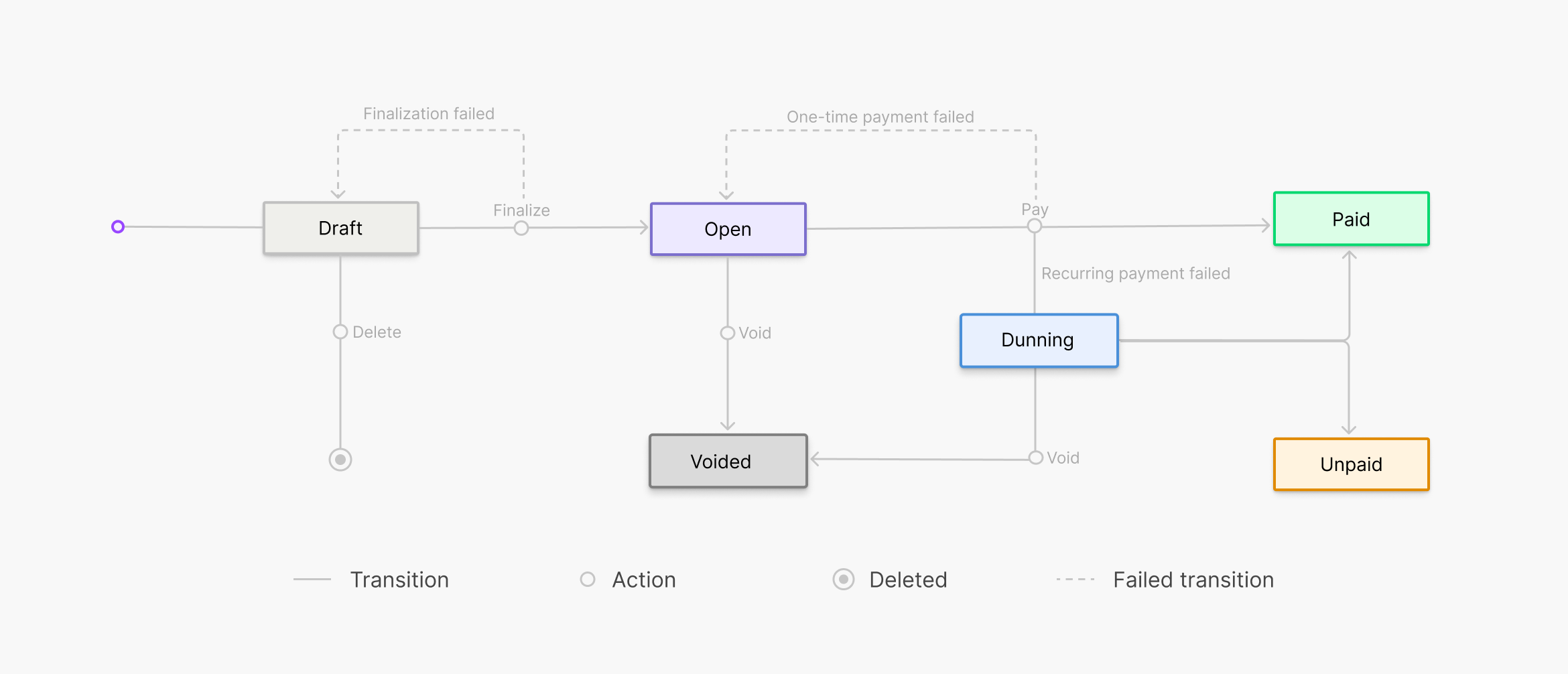
| Status | Description |
|---|---|
| DRAFT | Open for changes. You can edit line items, discounts, and customer details. |
| OPEN | Finalized and waiting for payment. No further changes are possible. |
| DUNNING | Invoice payment failed and automatic recovery is in progress. Solidgate retries the charge based on your dunning settings. |
| UNPAID | All recovery attempts are exhausted and the amount is still owed. Solidgate does not retry the charge automatically. |
| PAID | Payment authorized successfully. |
| VOIDED | Canceled by the merchant or automatically voided after the due date. |


Choose whether to void invoices automatically when all recovery attempts fail or mark them unpaid. Void invoices if you do not plan to recover the subscription as it cancels the subscription immediately. Mark them unpaid instead if you plan to contact customers and collect payment. Configure this with the invoice status setting in the Hub.
- Go to Billing > Billing 2.0 > Settings.
- Find Invoice status.
- Select Unpaid or Voided as the status to apply after all invoice retries fail.
Tax calculation
Tax is calculated automatically based on the customer’s address. When an invoice includes address information, Solidgate recalculates the tax and returns updated totals.
Discounts
You can apply one coupon per invoice. The discount is reflected in the invoice price breakdown after it is applied.
- To apply a coupon when creating an invoice, select the existing one in the Coupon dropdown.
- To change or remove a coupon on a draft invoice, open the invoice details page and select Edit next to Items.