


| Countries | Italy (IT) |
| Currencies | Euro (EUR) |
| Min amount | 0.01 EUR |
| Max amount | Up to the customer's Satispay balance |
| Integration type | API v1 |
| Payment Form |
| One-time | Yes | one-time |
| 1-click | Yes | unscheduled |
| Recurring | Yes | unscheduled |
| Unscheduled | Yes | unscheduled |
| Refund | Yes |
| Partial refunds | Yes |
| Multiple partial refunds | Yes |
| Chargeback | Yes |
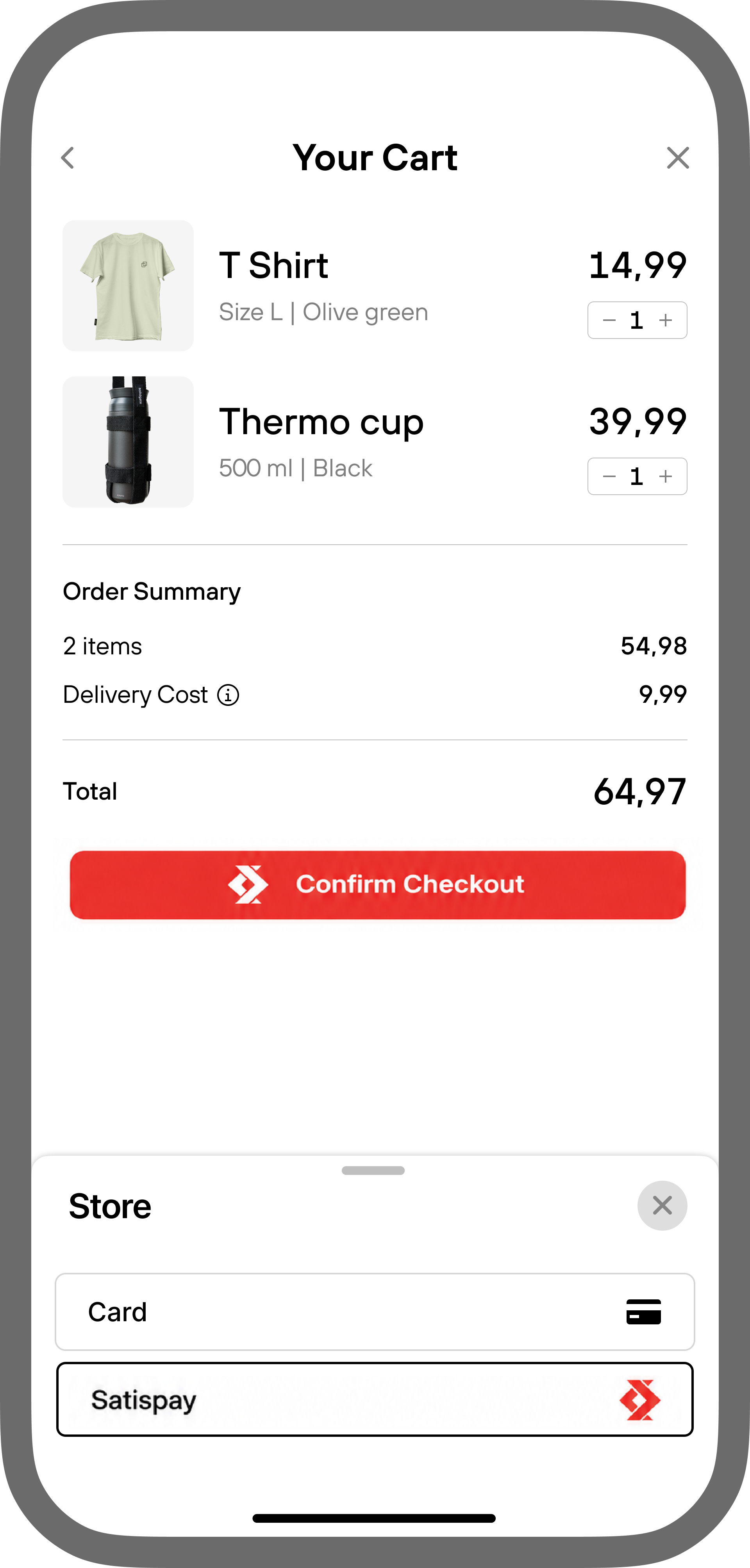
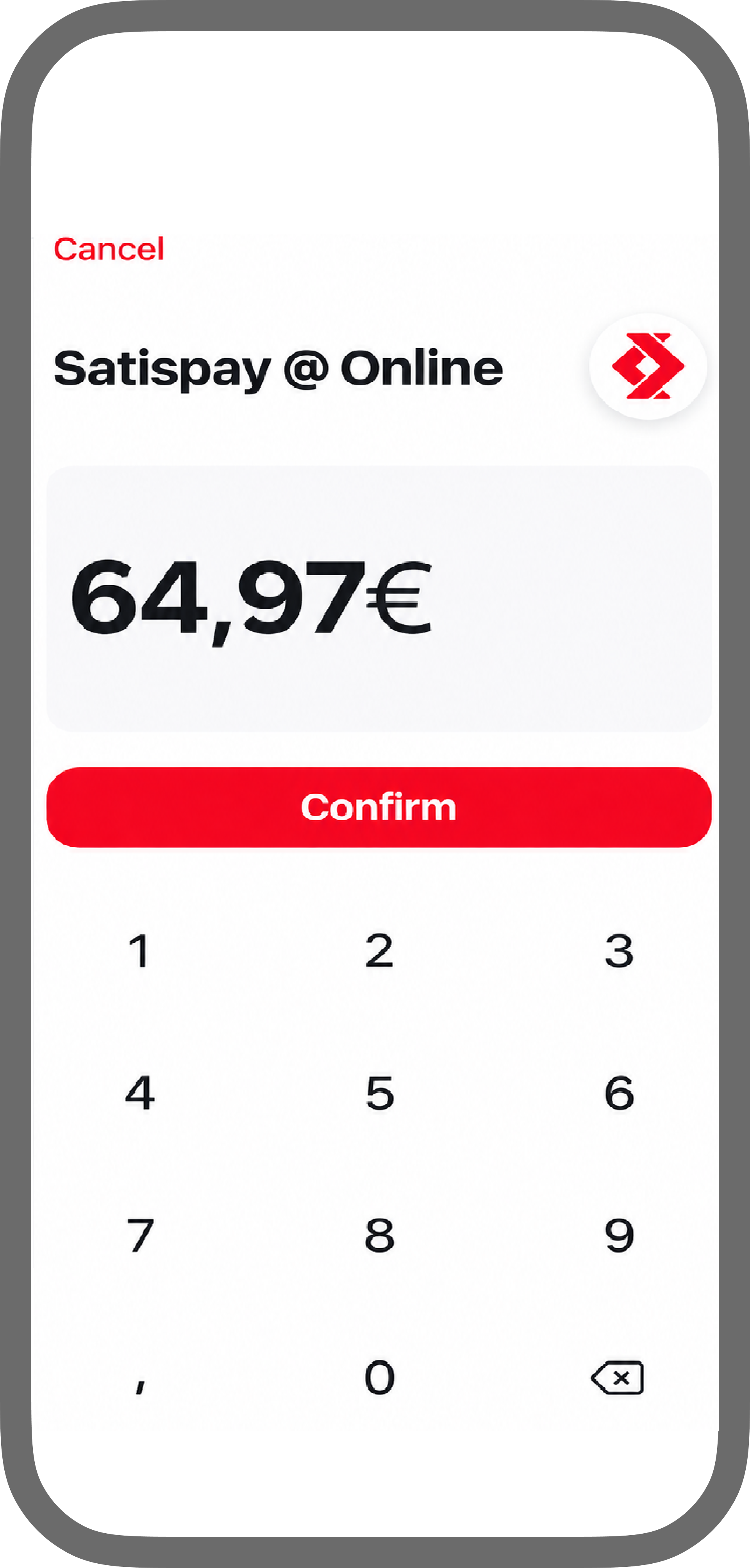
Born in Italy, Satispay is a mobile payment app linked to the customer's bank account, so no card details are needed. On mobile, checkout redirects straight to the Satispay app. On desktop, customers scan a QR code or enter their phone number, then confirm in the app.
With Solidgate, merchants accept both one-time and recurring Satispay payments through a single integration. Recurring charges run on a mandate: the customer approves it once, and later charges need no confirmation and have no fixed schedule or amount cap.
Principle of operation

Satispay supports payment flows:
- One-time
A single payment that the customer confirms in the Satispay app, without storing payment data for future use. - Recurring
The customer authorizes a mandate once in the Satispay app. The returned token covers later 1-click, recurring, and unscheduled charges without further customer confirmation.
- Selection at checkout
Customer chooses Satispay as the payment method. - Payment initiation
Merchant sends the payment request with future_usage.payment_type set to one-time . Solidgate returns the redirect URL inpay_form.return_url. - Redirect to Satispay
On mobile, the customer is redirected straight to the Satispay app. On desktop, the customer scans the QR code or enters a phone number on the Satispay page, which sends a notification to the Satispay app. - Payment confirmation
Customer approves the payment in the Satispay app. - Merchant notification
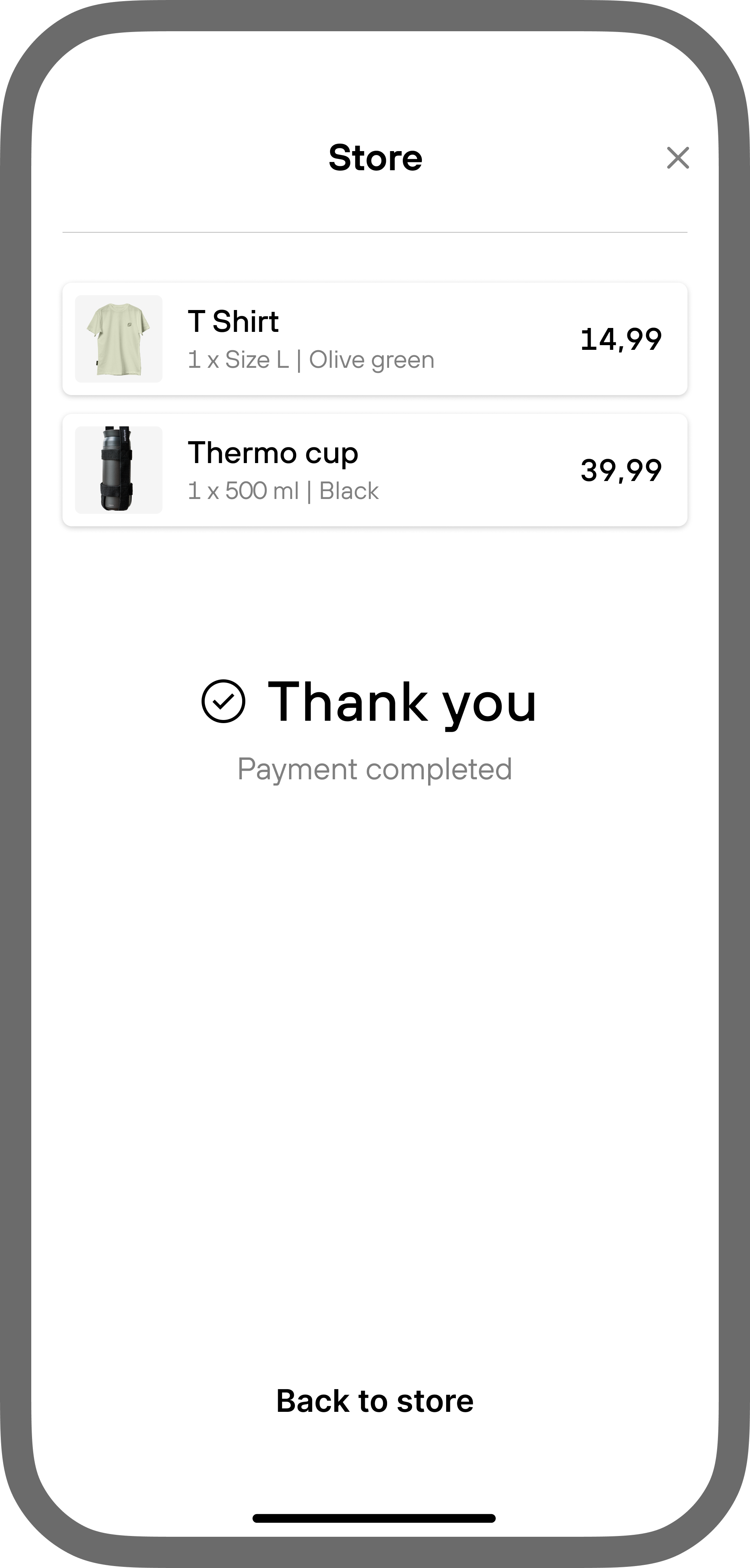
Merchant receives a notification Webhook confirming the final payment status.
- Selection at checkout
Customer chooses Satispay and starts the mandate authorization. - Payment initiation
Merchant sends the payment request with future_usage.payment_type set to unscheduled . Solidgate returns the redirect URL inpay_form.return_url. - Redirect to Satispay
On mobile, the customer is redirected straight to the Satispay app. On desktop, the customer scans the QR code or enters a phone number on the Satispay page, which sends a notification to the Satispay app. - Mandate authorization
Customer authorizes the mandate in the Satispay app, together with the initial payment amount. - Merchant notification
Merchant receives a notification Webhook with the outcome and thetokenfor subsequent charges.
token and do not require customer interaction. The mandate has no fixed billing schedule or amount ceiling, so it can be charged for any amount at any time until the customer revokes it in the Satispay app.
- Satispay accepts payments in EUR from customers with ITA as the billing address country.
- For recurring payments, do not send future_usage.max_amount or future_usage.billing_period . The mandate has no amount ceiling or fixed cadence.
- A free trial is supported only with a product_id that has a trial period configured.
- Buy Now, Pay Later is available for one-time payments only and cannot be combined with a mandate.
- In the Instagram and Facebook in-app browsers, the customer confirms the payment by phone number and returns to the merchant page manually.
Handle Satispay errors
When a Satispay payment fails, the decline returns one of the codes below.
Guide
Use the error code reference to identify decline reasons for card and alternative payments and decide on retry or resolution steps.
Satispay error codes
include the customer message and the next step for each code.
-
Guide
Pass future_usage.payment_type set to unscheduled for subscription products, then create a new order. 2.01 Invalid data
The payment type is not supported for the method. For subscription products, pass future_usage.payment_type set to unscheduled . -
Guide
Ask the customer to top up the Satispay balance and retry, or offer a different payment method. 3.02 Insufficient funds
The Satispay balance is insufficient for the charge. -
Guide
Allow the customer to retry and confirm the payment in the Satispay app, or offer a different payment method. 3.13 Cancelled by user
The customer cancelled the payment in the Satispay app.