


Shopify Website is an ecommerce platform for building and managing online stores. Solidgate connects to Shopify through the Solidgate Payments App for card and alternative payments and also supports a custom upsell flow.
Shopify offsite payments app

Accepting payments on your Shopify store is easy with the Solidgate Payments App.
Before you begin, make sure you have the following.
- Solidgate account
You have an active account with access to Solidgate Hub . - Processing channels setup
You have your merchant-live and merchant-sandbox channels configured in Solidgate with your website domain set to your Shopify store’s domain.
Integrate
Step 1. Install app
- Follow the Shopify App Store Website link to open the Solidgate app.
- Click on Install.
Your Shopify admin account opens. - Follow the prompts to proceed with the installation.
After installation, connect the app to your Shopify store.
Step 2. Set up app in Hub
- Verify the live and sandbox channels automatically selected by Solidgate.
- Click on Return to Shopify to continue the configuration process.
Step 3. Activate app
- In Shopify, go to Settings > Payments.
- Find Solidgate Payments App.
- Click on Activate and follow the prompts to complete activation.
Once done, processing live transactions or test payments using your sandbox channel becomes available.
You can always find the Solidgate app on Shopify by navigating to Settings > Payments and searching for Solidgate Payments App.
Step 4. Test integration
- In Shopify, go to Settings > Payments.
- Navigate to Solidgate Payments App > Manage.
- Activate Test mode.
- Add products to the cart on your Shopify store where the app is configured.
- Complete checkout to automatically return to the Solidgate Payments App page.
- Verify that transactions from your sandbox channel are processed correctly in Test mode by reviewing orders in the Shopify and Solidgate Hub accounts.
Step 5. Go live
- In Shopify, go to Settings > Payments.
- Navigate to Solidgate Payments App > Manage.
- Deactivate Test mode.
With the Solidgate payment app installed, tested and activated, you can now accept payments securely from your Shopify store. The transactions are now processed in real time using your merchant-live channel.
Available payment methods
After activation, in Shopify under Settings > Payments > Solidgate Payments App, enable the payment method icons you want to show at checkout. These toggles control icon display only and do not activate payment methods.
Card payments are always available under Cards & other methods. When the customer selects this option, they are redirected to a
Guide
Generate shareable payment links to collect payments without any code integration, embeddable forms, or website setup required.
Payment Link
hosted by Solidgate, where alternative methods appear based on your channel configuration and store currency.
| Alternative methods | Currency code | Country code |
|---|---|---|
 Guide
Guide
Accept MB WAY mobile payments from Portuguese customers with instant bank-linked transactions and real-time authorization confirmation. MB WAY | EUR | PRT Portugal |
 Guide
Guide
Integrate Bizum for the Spanish market to enable instant peer-to-peer bank payments directly from customer mobile banking applications. Bizum | EUR | ESP Spain |
 Guide
Guide
Accept iDEAL | Wero payments to reach Dutch consumers with bank redirect checkout supported by all major banks in the Netherlands market. iDEAL | Wero | EUR | NLD the Netherlands |
 Guide
Guide
Accept BLIK one-time, Pay Later, and recurring payments in Poland with mobile bank-to-bank checkout, broad bank coverage, and real-time authorization flows. BLIK | PLN | POL Poland |
 Guide
Guide
Accept open-banking-powered payments across European markets with instant account-to-account transfers and real-time confirmation flows. Pay by Bank | EUR , GBP | GBR the United Kingdom and Europe |
 Guide
Guide
Accept GCash e-wallet payments to reach millions of Filipino consumers with mobile-first checkout and instant transaction confirmation. GCash | PHP | PHL the Philippines |
 Guide
Guide
Accept MobilePay to reach customers in Denmark and Finland with mobile wallet checkout via redirect and app-based authorization. MobilePay | DKK , EUR | DNK Denmark, FIN Finland |
Customize checkout label
By default, the Solidgate option at checkout is shown as Cards & other methods. The label is localized automatically by buyer or shop locale. For example, Portuguese buyers see Cartões & MB WAY, and Spanish buyers see Tarjetas & Bizum.
Shopify Plus merchants can rename the option with the Checkout Blocks Website app.
- In Shopify, go to Apps > Checkout Blocks > Functions.
- Click on Create function > Payment customizations > Rename payment methods.
- Under Renamed payment methods, click on Add payment method.
- In From, select Solidgate Payments App.
- In To, choose Replace with, Add prefix, or Add suffix and then enter the new name.
- Click on Save and set Status to Active.
Issue refund
To maintain the refund status consistency, a process refunds directly in the Shopify admin account.
If you need assistance with the app integration, contact us .
Handle errors
These are common issues encountered during Shopify integration and recommendations to resolve them.
Currency conversion
With third party payment providers, local currency Reference settings only change how prices are displayed in your store. At checkout, Shopify converts the amount to your store’s default currency, and the customer is charged in that currency.
To avoid this conversion and charge customers in their local currency, create separate stores for each currency. The same store level currency rule applies to APMs among the available payment methods.
Shopify upsell flow
The payment process unfolds as follows.

- The customer enters their card data and completes the payment through Solidgate.
- After the purchase, the customer is offered an upsell of predefined physical goods such as t-shirts or books.
- The customer agrees to the upsell and you process the payment using a Solidgate token.
- Upon successful payment, the customer is redirected to a predefined permalink. This permalink is passed within the success URL and displays the predefined physical goods and further instructions for the customer.
- The customer places an order for the upsell goods.
- You receive a webhook notification from Shopify informing you about the new order.
- You send a request to mark the order as paid, completing the transaction process.
Set up upsell
To establish the integration, set up the manual payment method, create a cart permalink, and add a webhook endpoint for notifications.
Step 1. Manual payment method
- In Shopify, go to Settings > Payments.
- In the Manual payment methods section, select Add manual payment method.
- Click on Create custom payment method.
- Set a name for the new method such as Already paid if you use Solidgate for processing payments.
Step 2. Cart permalink
Create and customize a cart permalink that redirects customers to a page displaying purchased items and instructions.
- Follow the Shopify instructions Reference .
- Customize your link on the Shopify side if required.

Step 3. Webhook endpoint for notifications
Set up a webhook endpoint to receive notifications when an order is created.
- Follow the Shopify instructions Reference .
- Test your webhooks on the Shopify side to make sure that they work as expected.

API configuration
Creating a transaction via API for a customer’s order ensures the order status updates from Pending to Paid via API. Follow the steps below to receive an access token for the Shopify transaction API Reference .
Step 1. Create app
- In Shopify account, click on Settings.
- From the navigation panel, select Apps and sales channels.
- Go to Develop apps.
- Click on Allow custom app development and select Create an app.
- Enter the app name and click on Create app.
Step 2. Configure admin API scopes
- On the app configuration page, select Configure admin API scopes.
- In the list of scopes, find Order editing scope.
- Check the boxes next to this scope and any other scopes you want to access via API.
- Click on Save to apply the selected scopes.
Step 3. Get API credentials
- Navigate to the API credentials tab.
- Select Install app to get an access token.
- Make sure to save the token, as it is shown only once.
Once you complete the steps, you can send the API request to change the order status from Pending to Paid.
Upsell flow example
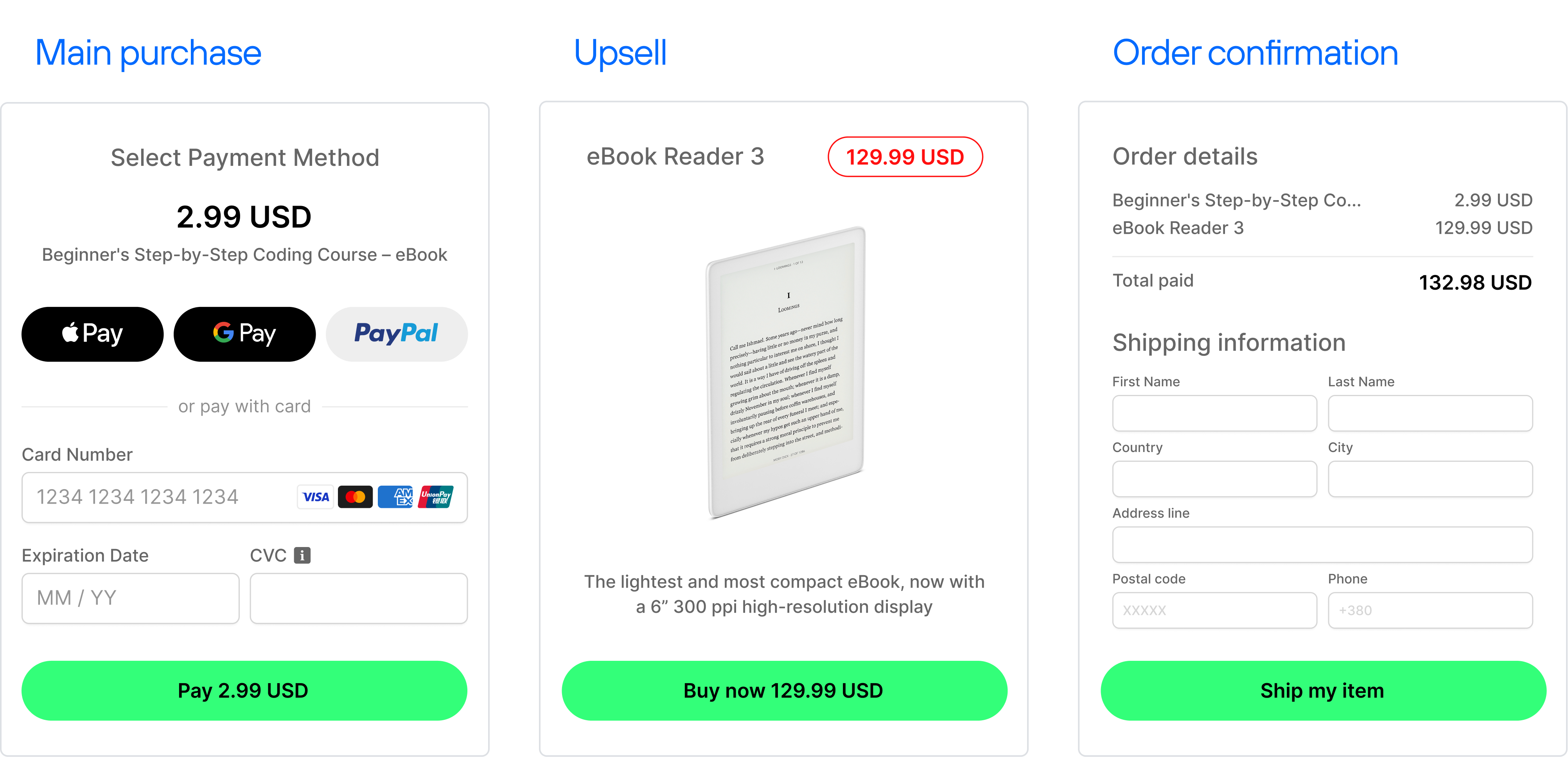
By employing this flow and adopting Solidgate for payment processing, you can seamlessly integrate Shopify to present upsell opportunities.